Showing posts with label techie junk. Show all posts

Tuesday, May 26, 2009

New Camera, New Hair

Those of you who follow me on Twitter already have heard these two pieces of news. Those of you who don't--why wait for blog posts full of nonsense, when you can have little bits and pieces of nonsense from me ALL DAY???

1. I found a brand new Canon EOS Rebel XT with an 18-55mm f/3.5-5.6 lens on clearance at Wal-Mart for $299. Can you say MEGA-SCORE???? I'm going to sell my Powershot SX10IS and should be able to recoup nearly all the money we spent on it!

2. I got bored on Saturday and decided to go platinum blonde. Wow! What a process! I've done two bleachings and a light blonde toner and I'm still not done yet. If I have any hair left and my scalp isn't one big scab when I reach the true platinum shade I want, it will be a miracle.

What do you think??

Tuesday, March 10, 2009

Ughhh and WOW!

It's official. I have my first cold in three years. I am lucky to have a pretty good immune system, but once it gets knocked down--it's down for the count. So what that means is I can expect at least two or three more colds in the next few months. I guess I should be thankful I didn't get sick a few months ago or I'd really be screwed.

On a much more exciting note, hubby surprised me with a present when he arrived home on Saturday. A NEW CAMERA!! Now it isn't a fancy DSLR like I was looking at, but it is a high end point and shoot and is a solid camera that many professionals carry when they don't want to lug around their heavy duty equipment. Take a look at this sexy beast!


I'm really looking forward to learning the ins and outs of this camera and maybe by the time the Black Tie warranty runs out in four years, I'll have learned how to shoot in manual mode. Then I'll consider getting a DSLR. I like the fact that it takes great pics but doesn't weigh 30 pounds and if I hand the camera to Grandma and ask her to take a picture she won't faint from confusion.

I took a few pictures of me today with my new camera so you could see just how crappy I'm feeling. BUT I nearly had a hernia when I looked at how good of pictures my new camera took!!! Trust me y'all. You would be scared...

Thursday, September 18, 2008

Make Your Own Button for Your Blogger Blog!

A few weeks ago, I posted about my new button and promised I would give easy directions on how to make your own button, so here ya go!


1. Create your button picture: Begin with a picture or your logo, no larger than 150 pixels wide. Why 150 pixels? Most sidebars are only 200 pixels wide, so any larger and your button will be cut off on one or both sides. You'll probably want to include the title of your blog, as the point is to help increase your blog traffic, right? Most of the buttons I've seen have been squares--150 x 150--but my button didn't look right as a square, so a vertical rectangle it was! Tip Junkie's buttons are all horizontal rectangles. I created my button picture in Photoshop 7.0 (which I'm still plodding my way through).

2. Host your picture:Find a place to host your picture. I use Picasa for all my normal blog pictures, but I couldn't find direct links to my pictures on Picasa, so I used Photobucket. I made a new account for this blog and it was quick and simple. I uploaded my button to Photobucket and copied the direct link to the photobutton. Here is a screen shot of my photobucket album showing the direct link you'll need to copy.
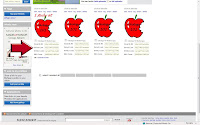


3. Create HTML for your button: Copy the following code and replace yourblogURL with your blog's URL and yourimagedirectlinkURL with the direct link URL in Photobucket (the quotation marks are necessary).


4. Place the button in your sidebar: In your blog, choose Layout or Customize and in your sidebar, click Add a gadget and choose HTML/Javascript. In the title area, you can write whatever you'd like--Take a Button, Grab my Button, or don't use a title at all--whatever suits your fancy. Then in the HTML box, post your HTML from the previous step. Save it and preview your blog to make sure your button shows up on the sidebar and that the button takes you to your blog. Here is a screen shot of my button HTML
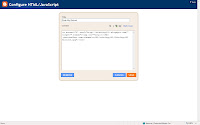


5. Create your text area for your button: Again, choose Layout or Customize and in your sidebar, click Add a gadget and choose HTML/Javascript. If you leave out the title, the text box will appear directly under your button. In the HTML box, paste the following code:

<textarea rows="4" cols="20">

Then paste in your HTML from step # 3 and close with

</textarea>

Click save. and now, drag this HTML box under your button HTML in page layout. View your blog and make sure the two appear together. Here is a screen shot of what my text area looked like in Blogger.
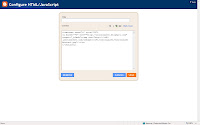


VOILA! You now have a button for others to post on their blog! Please let me know if you have any questions and also if you use the instructions to make a button!! Enjoy!!

p.s. It isn't 100% necessary, but I'd really, really appreciate your link back to me if you make your own button! THANKS!!

Saturday, September 13, 2008

Friday, September 5, 2008

My New Button!!

Okay, so you all know that I should be getting ready for not only the midget's first birthday party, but my Fisher-Price House Party is this weekend as well. So instead of cleaning and cooking, I was busy trying to figure out how to create a button. I've been working on it for about three hours, and I FINALLY FIGURED IT OUT! Holy CROW, I am so proud of myself!

Here's my gorgeous new button for you to put on your sidebar!!


I'd love to know if you put it on your blog, so leave me a comment if you do! After I get my house cleaned, I will put up a tutorial on how to make your own button!

Have you seen my post on how to create a favicon for blogger?

Wednesday, August 20, 2008

I'm Tweeting!!


It's all Conservative Belle's fault. And Deanna's too...

Now you can take a peek inside my head! Just click "follow me on twitter" to the right, and you can be bored with my life too! har har

Do you tweet? Let me know by leaving me a comment and I'll start following you too!

This may be bad. I hardly got any cleaning done before...

Sunday, July 27, 2008

How to Create a Favicon on Blogger (the little picture thingie in the address bar)


Ever wonder how people get the cute little square icons up in the address bar and on the tabs of Internet Explorer? Do you adore the little apple you see when you pull up my blog? Those cute little pics are called Favicons and it's easy to do your own!

I had to read about 15 different sets of instructions to finally get it to work on Blogger, so you can take advantage of my wasted time and save some of your own!

1. Go to www.iconj.com . On the right-hand side, there is a spot labeled favicon generator and favicon.ico hosting. It works best if the picture you're using is square because it's going to convert it to 16 x 16 pixels.

2. Choose your picture, sharpen it if you want to (sharpening will help if you are using a photo or something with detail), and click Upload Now.

3. It will return with a Direct Download, but don't use this--it isn't Blogger compatible. Picasa will not host .ico files, so you'd have nowhere to put it (took me forever to figure this out). Underneath, it says Host it at IconJ. Copy this link.

4. Sign into Blogger, choose Layout, and then choose Edit HTML. About 5-6 lines down, you'll see the command < head > Paste the link directly under it. Then paste it again and go to the end of the link and delete the word shortcut. If you only paste the link in once, it will only change the icon up in the address bar and not the icon on the actual page.

5. Click Preview Template. You should see your favicon appear! If you do, you can click Save Template! Be cautious while you are editing in HTML and don't accidentally delete a bunch of stuff! But, you can always click Clear Edits if you haven't saved your template yet.

Here is a screen shot of what my template looked like with the edit. You can click it to enlarge.

Happy Favicon-ing!